Most professionals spend their days acting as human routers. You read an email, copy the action item into your project management tool, attend a meeting, type up the notes manually, paste those notes into a separate document, and pull numbers into a spreadsheet at the end of the week. That constant context-switching and manual data transfer drains your energy before you have started the work that actually matters.
You do not need to write a single line of code to fix this.
The Quick Answer: You do not need to write a single line of code to automate 80% of your daily work in 2026. For complete beginners connecting common SaaS apps, Zapier is the fastest plug-and-play solution. For complex multi-branch logic, visual data mapping, and lower operational costs, Make.com is the superior choice. For native calendar and task execution, pair them with Motion for autonomous scheduling and Fathom for hands-free meeting action items.
⚡ Featured Guide: Check out our comprehensive comparison of the 10 Best No-Code AI Automation Tools in 2026 to pick the right engine.
By connecting a few accessible tools, you can build systems that run quietly in the background while you focus on high-value work. People who have built these stacks consistently report recovering 10–15 hours of manual data entry per week — not by working faster, but by eliminating work that should not have required a human in the first place. This guide gives you a specific, phase-by-phase blueprint to automate your work life using AI and no-code tools, starting from a chaotic inbox and ending with a largely self-managing workday. For the broader context on how automation fits into a complete AI productivity setup, the Ultimate Guide to AI Productivity Tools maps the full landscape.
📋 What This Guide Covers
The Foundation: Why Most AI Automation Projects Fail Before They Start
Before you open a single app, you need the right framework. The biggest mistake professionals make is trying to automate a messy process. If your current workflow is disorganized, automation will execute that disorganization faster and more consistently than ever before.
Integrating AI into daily workflows does not require a computer science degree. It requires something harder: honest process mapping. You need to understand exactly what event triggers a task, what the desired output looks like, and what every manual step in between actually is — before you try to replace those steps with software.
Why 85% of AI Automation Projects Fail (And How to Avoid It)
The barrier to successful automation is rarely the technology. Approximately 85% of AI automation projects fail because users do not clearly map their workflows before implementing anything. They buy software subscriptions expecting the tool to tell them how to work. Instead, grab a pen and paper first.
Write down exactly how a piece of information enters your world and where it needs to end up. If a client emails you, what happens next? You read it, check a spreadsheet, draft a reply, create a calendar event, log a note in your CRM. Map every single manual click. Only after you have a clear, step-by-step map of what you currently do manually should you attempt to build an automated version of it. The diagram below is a reference point — your map will look different, and that specificity is the point.
Identifying Your Highest-Value Automation Targets: The 5 D's
You cannot automate everything at once, and you should not try. When starting from zero, master simple two-step triggers before building complex multi-branch workflows. Trying to build everything in week one is the second most common reason automation projects die.
To figure out where to start, look for tasks that are Dull (repetitive, same steps every time), Demeaning (below your actual skill level), Dirty (error-prone when done manually), Difficult (require coordination across multiple tools), or prone to being Delayed (things that fall through the cracks). These are the 5 D's of automation — your first targets.
In a standard professional environment, the clearest 5 D candidates are: copying contact information from email signatures into a CRM, formatting weekly reports by pulling numbers from three different dashboards, distributing meeting action items to team members, and scheduling follow-up emails based on client responses. Identify your top three. Those are Phase 1.
Choosing Your Automation Connector: Zapier vs Make vs n8n
The automation connector is the tool that bridges software platforms that do not naturally talk to each other. It watches for a trigger (an email arrives, a form is submitted, a meeting ends) and fires an action (create a task, send a Slack message, update a spreadsheet). Before building anything, you need to pick the right connector for your situation.
| Platform | Best For | Free Plan | Paid Starting Price | Learning Curve | App Integrations |
|---|---|---|---|---|---|
| Zapier | Non-technical beginners | ✅ 100 tasks/month | $19.99/month | Low | 7,000+ |
| Make | Complex branching workflows | ✅ 1,000 ops/month | $9/month | Medium | 1,500+ |
| n8n | Developers / self-hosters | ✅ Self-hosted free | $20/month (cloud) | High | 400+ native |
If you are completely new to automation, start with Zapier. Its visual interface is the most intuitive of the three, its integration library is the largest (over 7,000 apps including almost everything you already use), and the support documentation is the most beginner-friendly. The free plan at 100 tasks per month is enough to test one or two automations before committing. The Starter plan at $19.99/month covers most individual professional setups with multi-step Zaps and premium app integrations.
Move to Make when you outgrow Zapier's per-task pricing. Make's operations-based pricing model is significantly more cost-efficient at scale — its Core plan at $9/month includes 10,000 operations, which covers substantially more automation volume than Zapier's equivalent tier. Make also handles complex conditional logic, multi-path branching, and data transformation more cleanly than Zapier. The learning curve is real, but Make's visual canvas builder is intuitive once you get past the first few scenarios.
Use n8n only if you have technical capability and want self-hosted control or minimal vendor dependency. n8n can be run entirely on your own servers at zero cost, making it ideal for teams processing sensitive data or those who need complete customization. It has the steepest learning curve of the three. For our no-code blueprint, Zapier is the right starting point — but as your automations scale, our deep comparison of Zapier vs Make vs n8n will help you decide when and whether to migrate.
The Automation Stack: Three Tools That Do 90% of the Work
For this blueprint, we are building around three tools. You could add more over time — and you will — but these three form a complete foundation that handles email, meetings, tasks, reporting, and external communications without any code.
Tool 1: Zapier — The Connective Tissue
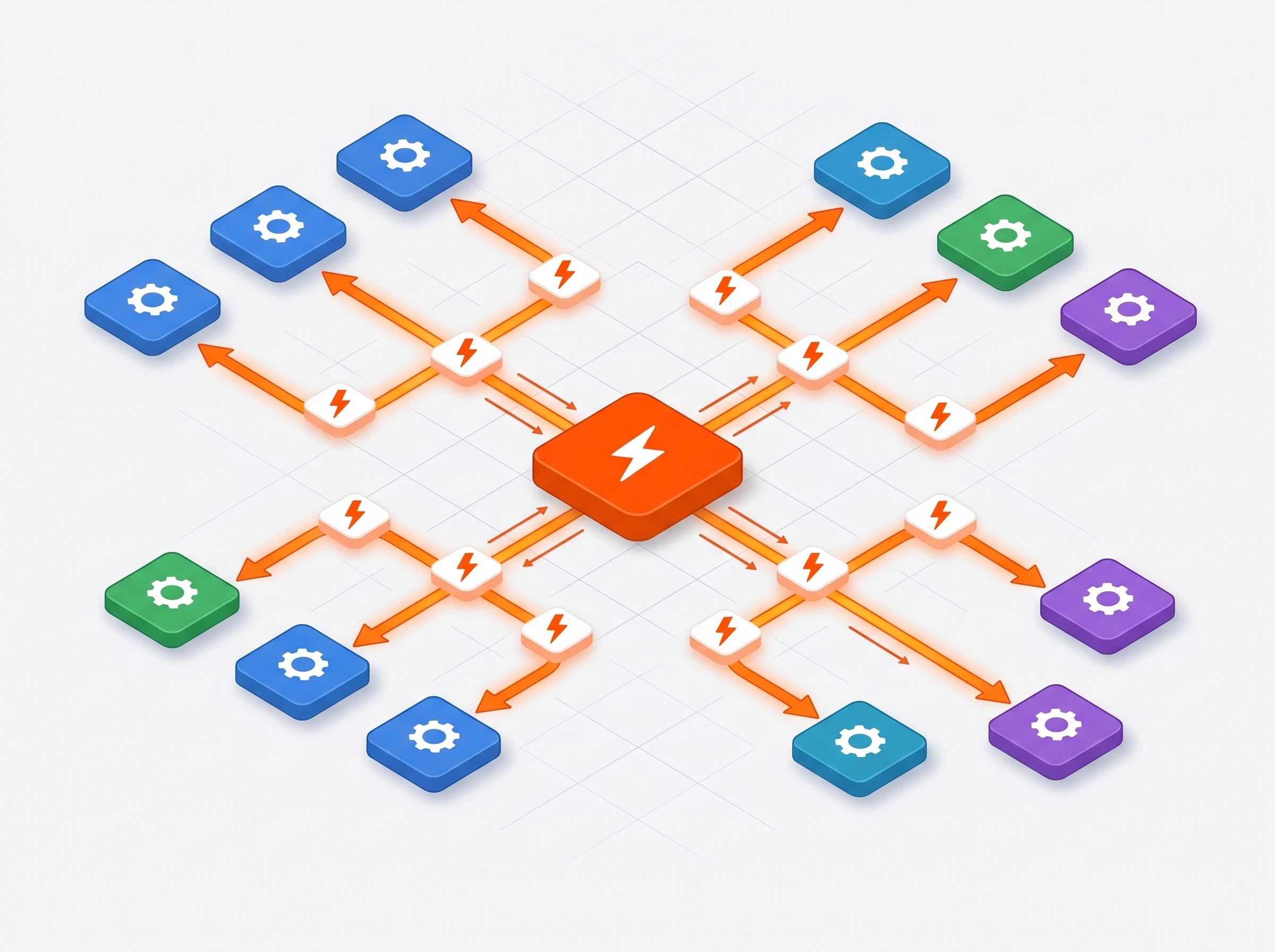
Zapier Automation Hub — Bridging Every App in Your Workflow Without Code
Zapier is the nervous system of your stack. It watches for triggers across your apps and fires actions in response, moving data between platforms that would otherwise never communicate. You set it up once, and it runs silently for months or years without requiring your attention again.
The core logic is simple: Trigger → Action. A new starred email arrives (trigger) → create a task in Notion (action). A meeting ends in Fireflies (trigger) → post the summary to Slack (action). A form is submitted on your website (trigger) → add the contact to your CRM (action). Every automation you build in this blueprint follows this pattern, and Zapier handles the bridge between steps.
💰 Zapier Pricing: Free — 100 tasks/month, 5 Zaps, single-step only. Starter — $19.99/month (annual) for 750 tasks and multi-step Zaps. Professional — $49/month (annual) for 2,000 tasks. Team — $69/month for 2,000 tasks plus collaboration features. Most individual setups run comfortably on the Starter plan.
Tool 2: Fireflies.ai — Your Automated Meeting Ears
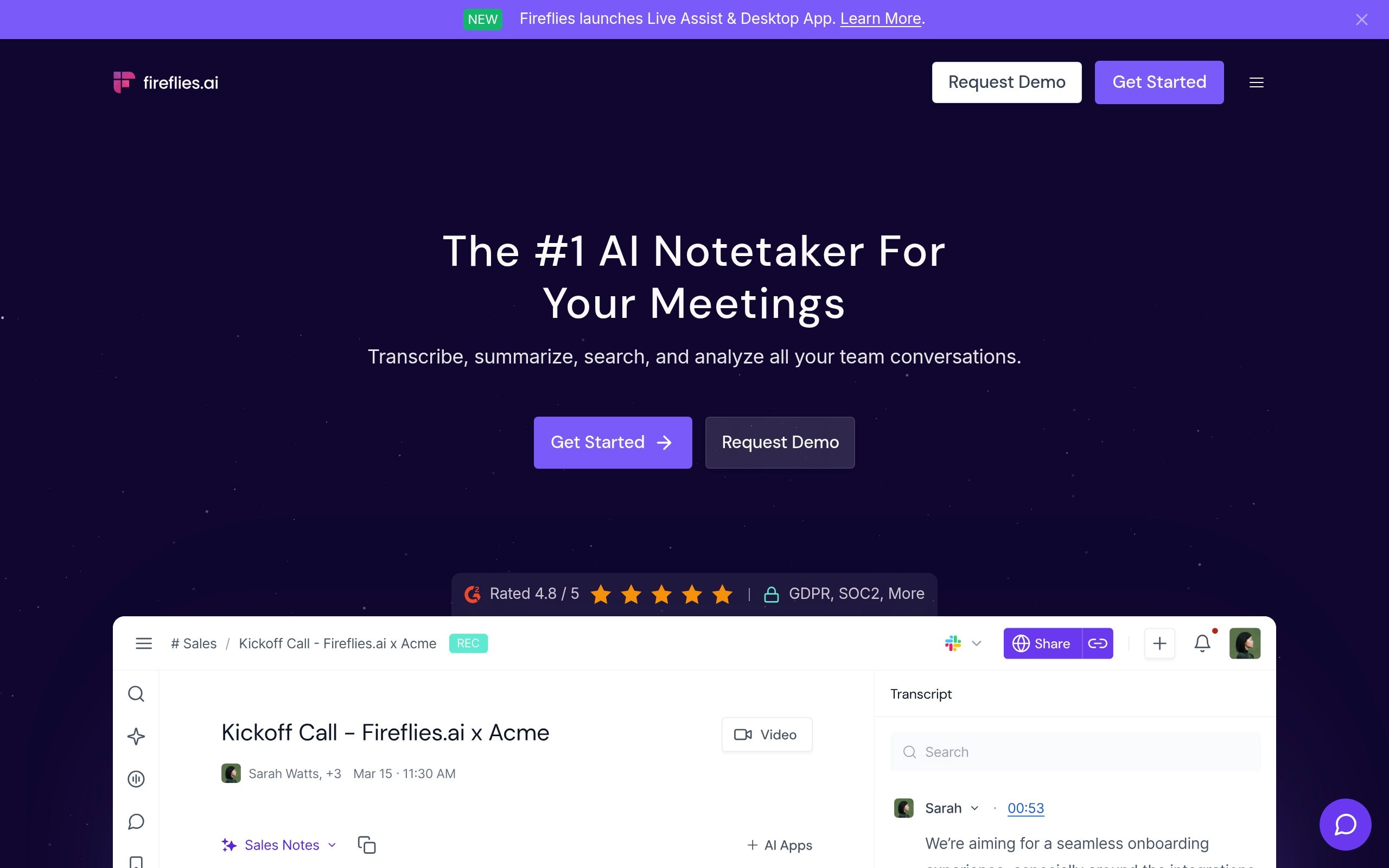
Fireflies.ai joins your video meetings as an automatic participant, records the audio, generates a highly accurate transcript, identifies speakers, and extracts action items — all before you have finished your post-call coffee. It works across Zoom, Google Meet, and Microsoft Teams without requiring any setup on individual calls. Connect it to your Google or Outlook Calendar once, and it shows up automatically for any call with a meeting link.
The reason Fireflies sits in this stack specifically (versus other note-takers) is its Zapier integration. When a meeting ends, Fireflies can trigger a Zapier workflow that pushes the summary directly into Notion, Asana, Slack, or your CRM — without any manual copy-pasting. That connection is the bridge between "we had a meeting" and "the decisions from that meeting now live in the right place automatically." For a full comparison of how Fireflies stacks up against Fathom and Otter.ai for different workflows, our head-to-head guide on Otter.ai vs Fireflies vs Fathom covers the details.
💰 Fireflies Pricing: Free — unlimited transcripts, 800 minutes/month storage (3-month retention). Pro — $10/user/month (annual), removes retention limit, adds AI summaries and CRM integrations. Business — $19/user/month (annual), adds conversation intelligence and analytics. For most automation-focused workflows, the Pro plan at $10/month is the right entry point since it unlocks the Zapier integration depth needed for this blueprint.
Tool 3: Notion AI — The Central Brain

If Zapier is the nervous system and Fireflies is the ears, Notion AI is the brain. Notion gives you a highly customizable workspace that combines document editing with database capabilities — a single place to store everything your automations collect. More importantly, Notion AI processes that data without requiring you to export it anywhere: you can summarize a meeting transcript, extract action items, generate a weekly report, or analyze a set of tasks directly within the workspace where the data already lives.
Notion also works as the output destination for every other tool in this stack. Zapier routes data into Notion. Fireflies pushes meeting summaries to Notion. Your email automations create tasks in Notion. The Notion AI layer then sits on top of all of that, making sense of the collected data on demand. For teams evaluating whether Notion or a competing knowledge base is the right fit, our comparison of Notion AI vs Obsidian vs Mem.ai addresses the tradeoffs directly.
💰 Notion Pricing: Free — unlimited pages and blocks for individuals. Plus — $10/user/month (annual), adds unlimited file uploads and collaboration. Business — $15/user/month (annual), adds private teamspaces and advanced analytics. Notion AI is an add-on at $8/user/month on top of any paid plan. Most individuals can run this blueprint on the free Notion plan plus the $8/month Notion AI add-on.
Blueprint Phase 1: Automating Your Email Inbox
The workday begins in the inbox, and for most professionals, managing email is effectively a second job. The goal of this phase is not to delete emails faster. It is to make your inbox irrelevant to your decision-making — so that by the time you open it, everything is already sorted, prioritized, and partially handled.
Step 1: AI Triage and Priority Routing
Set up a Zapier workflow that monitors your Gmail or Outlook inbox for new messages. When an email arrives, Zapier sends the message body to an AI model (OpenAI's GPT-4o via Zapier's built-in AI actions, or the Claude API) for sentiment and urgency analysis. The AI checks for language associated with urgency, frustration, legal concerns, or time-sensitive requests.
Based on the AI's classification, Zapier takes one of three actions: apply a "High Priority" label and send a Slack notification (urgent), move to a "Read Today" folder (routine but requires action), or file to a "Read Later" folder (newsletters, FYIs, low-stakes updates). This runs silently the moment each email lands. You open your inbox to a pre-sorted set of messages rather than a chronological pile where everything competes equally for your attention.
For a more curated shortlist of tools specifically designed for email AI, our guide to free AI email writers in 2026 covers tools like Shortwave and MailMaestro that handle triage as a built-in feature rather than a custom Zapier workflow — sometimes the right tool is simpler than the custom build.
Step 2: Auto-Drafting Contextual Replies
For routine inquiry types — pricing questions, status updates, meeting requests, support questions — you can automate the actual writing. Set up a Zap triggered by emails arriving with specific keywords (e.g., "pricing," "proposal," "schedule a call"). Zapier sends the email body to an AI model with a prompt you have written in advance: "You are an assistant for [your name]. Read this email and draft a professional reply explaining our starting packages, referencing [specific talking points]. Keep it under 150 words."
The AI generates a draft. Zapier creates it as a draft in your Gmail or Outlook — not sent automatically, but waiting for your 30-second review before you hit send. This is the human-in-the-loop model that makes email automation safe: you get the time savings of AI generation without the risk of an automated email going out with an error or tone issue. For professionals handling a high volume of similar inquiries, this single workflow typically recovers 3–5 hours per week.
Blueprint Phase 2: Task Management on Autopilot
Once your inbox is sorted, you need to extract the actual work from it without manually recreating each email as a task. The goal of task management automation is to make "create a task" something that happens automatically at the moment work enters your world — not something you have to remember to do. Our guide to AI project management tools covers more comprehensive platforms if your team needs structured project management beyond individual task capture.
Step 1: Converting Emails to Tasks Automatically
This is the most useful two-step Zap in most professionals' workflows:
Trigger: New Starred Email in Gmail (or flagged in Outlook).
Action: Create Database Item in Notion.
When you are processing your inbox, any email that requires actual work gets a star. Instantly and silently, Zapier pulls the subject line, the sender name, the email body, the date received, and a direct link back to the original email thread — and creates a new row in your Notion task database. You never type a task title again. You never lose a commitment buried in an email thread. The inbox stays clean, and all actionable items live in one place with their full context attached.
If you prefer to keep tasks in Asana or Todoist rather than Notion, Zapier has native integrations for both — the trigger and logic are identical, only the destination changes.
Step 2: AI-Driven Priority Assignment
A task database is only useful if you know what to work on first. Add a Notion AI block to your task database template that activates when a new row is created. The AI block reads the task content and email body, looks for deadline language, urgency signals, and project keywords, and automatically assigns a priority tag (High / Medium / Low) and a rough time estimate.
You start each day looking at a task list that has already been categorized and prioritized without any input from you beyond the initial star in your inbox. The decisions about what to tackle first are suggested rather than something you have to construct from scratch each morning. For teams that want fully autonomous AI scheduling of tasks into their calendar — not just prioritization but actual time-blocking — our comparison of Motion vs Reclaim.ai vs Clockwise covers tools that handle this at a more sophisticated level.
Blueprint Phase 3: Hands-Free Meeting Workflows
The middle of most workdays disappears into meetings. The standard routine involves frantic note-taking, missing key points, and spending 20 minutes afterward trying to format those notes for the team while also mentally downloading the next call. This phase eliminates all of that.
Step 1: Capturing Transcripts Automatically
Connect Fireflies.ai to your Google or Outlook Calendar. From that point, Fireflies scans your upcoming calls, identifies any event with a video conferencing link, and automatically joins as a silent participant when the meeting starts. You do not press record. You do not take notes. You look at the person on screen and focus entirely on the conversation.
Fireflies captures the audio in real time, generates a transcript with speaker labels, and produces a summary with action items when the call ends. The entire capture process requires zero in-meeting effort after the initial calendar connection. For a broader look at the complete meeting note-taker market including bot-free options for sensitive calls, our full ranking of the best AI meeting note-takers in 2026 covers every major platform and use case. For teams specifically evaluating free options, free AI meeting transcription tools covers what you get without a subscription.
Step 2: Routing Meeting Outputs to Your Workspace
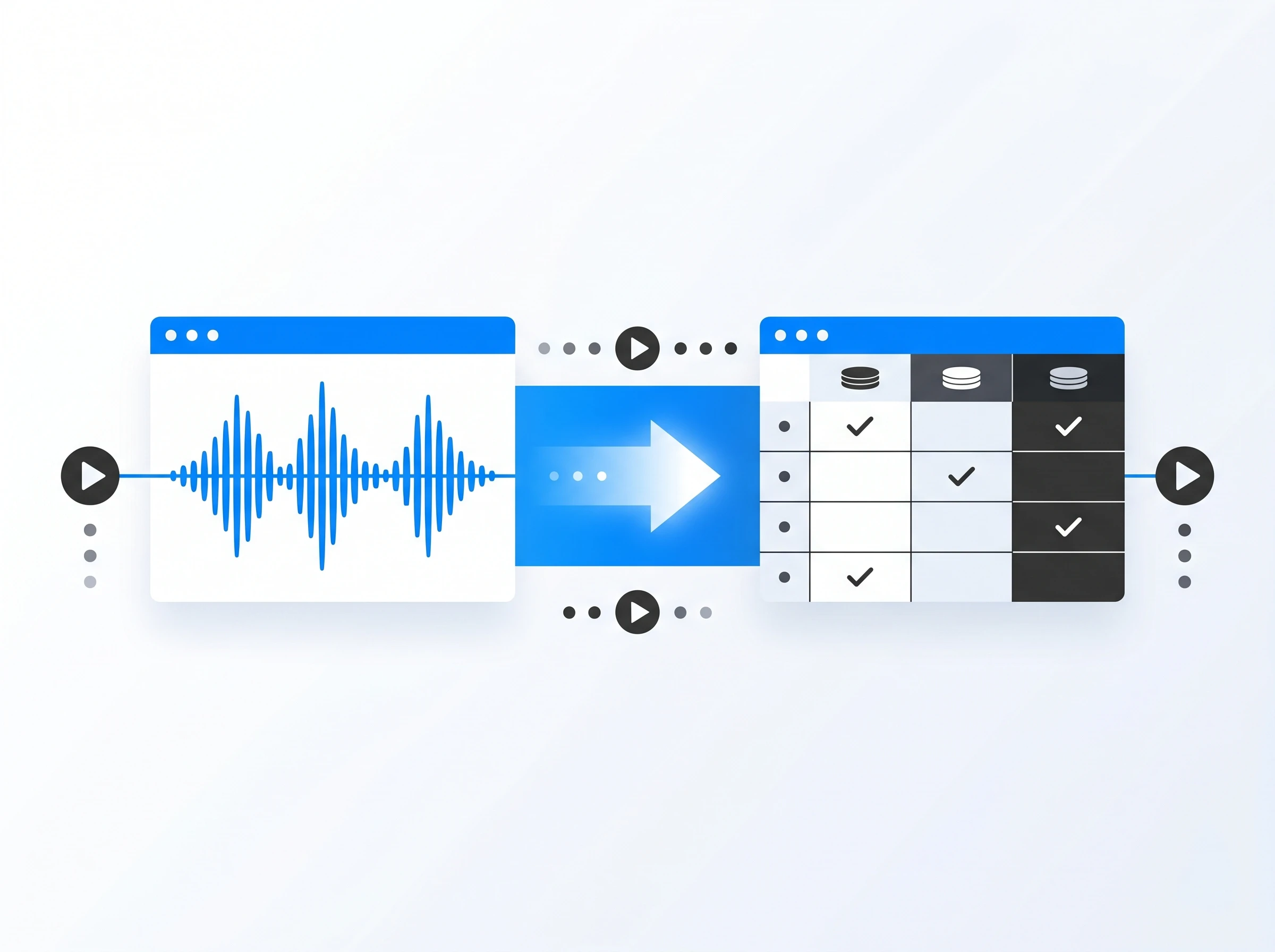
Automated Meeting Notes Pipeline — From Call Audio to Organized Tasks Without Manual Steps
A transcript sitting in Fireflies is slightly less useful than a transcript sitting in a siloed app you check weekly. The real value comes from getting the meeting outputs into the place where work actually happens.
When a meeting ends, Fireflies triggers a Zapier workflow. Zapier takes the Fireflies summary and pushes it into a dedicated "Meeting Notes" database in Notion. If Fireflies identified action items — "John will send the proposal by Thursday," "design review scheduled for next Monday" — Zapier extracts those separately and creates individual task entries in your task database, each linked back to the meeting note they came from.
The complete lifecycle from "meeting started" to "action items in your task list" now happens without a single manual keystroke. The only remaining human decision is whether the AI's action item extraction got it right — which takes about 60 seconds to review in Notion.
Blueprint Phase 4: Automated Reporting and Analytics
End-of-week reporting is textbook "Dull" work. You pull ad spend from one platform, traffic from another, revenue from a third, try to remember the formula in the spreadsheet, and write two paragraphs that summarize what the numbers mean. This phase automates every step of that process.
Step 1: Cross-Platform Data Collection
Set up a recurring scheduled trigger in Zapier — every Friday at 3:00 PM. When it fires, Zapier runs a series of data-retrieval actions: count new leads from your CRM, pull total revenue from Stripe, retrieve the week's traffic figures from Google Analytics, and check any other data sources relevant to your role. Zapier assembles all of these numbers and creates a new entry in a "Weekly Reports" Notion database, pre-populated with the raw figures.
The data gathering happens at the same time every week, pulls from every source correctly, and requires no manual checking of dashboards. If you also need to track how time was spent against projects — a common reporting gap — our guide to AI time tracking tools covers how to add that data layer to your reporting workflow.
Step 2: AI-Generated Executive Summaries
Raw numbers sitting in a Notion database are not a report. Once Zapier has populated the week's data, a Notion AI block activates and writes the analysis. The AI prompt in your template reads something like: "Review the metrics gathered for this week. Compare them to last week's numbers already in this database. Write a three-paragraph summary: what grew, what declined, and what the team should focus on next week based on these trends."
The AI executive summary is ready in seconds. You review it for accuracy (usually 90%+ right on the first pass), make any adjustments, and forward it. A reporting process that previously took 45–60 minutes now takes 3 minutes of review. The data on weekly time savings from AI automation consistently puts this type of reporting automation near the top of the list in hours recovered per week.
Blueprint Phase 5: Social Media and External Outreach
If your role involves content creation, personal branding, or audience building, social media can consume hours every week that do not feel like real work. The goal of this phase is to shift from daily reactive posting to a managed content pipeline that runs on autopilot with your approval at each step.
Step 1: Notion-Powered Content Pipeline

Create a "Content Pipeline" database in Notion with statuses: Idea → Draft → Ready → Scheduled → Published. Throughout the week, capture rough ideas, interesting links, and brief observations directly in Notion — a single line is enough. At a scheduled time (say, Wednesday afternoon), open your content pipeline and use a Notion AI block to expand each rough idea into a complete post. The prompt: "Turn this rough idea into a LinkedIn post under 150 words. Professional but conversational tone. Include a practical takeaway and end with a question."
Review the generated drafts, adjust as needed, and mark approved posts as "Ready." For teams managing content at scale or wanting to coordinate across multiple writers and platforms, our guide to AI team collaboration tools covers platforms built specifically for content team coordination.
Step 2: Human-in-the-Loop Approval Workflow
When a post status changes to "Ready" in Notion, Zapier detects the change and fires. But here is the critical design choice: the action is not "Publish to LinkedIn." The action is "Send Slack message for approval" — a notification that includes the full post text and two buttons: Approve and Reject.
This human-in-the-loop checkpoint is non-negotiable for external-facing automations. Automating publication without a review step is how AI posts something off-brand, factually wrong, or tonally inappropriate to your public feed at the worst possible moment. The automation handles the generation and scheduling; you handle the final yes/no. Only after clicking Approve does Zapier push the post to your scheduling tool or directly to the platform.
⚠️ The Golden Rule of External Automation
Never automate the final publication step for external communications — email to clients, social media posts, press releases, or customer-facing messages — without a human approval checkpoint in the middle. The cost of a mistake that reaches your audience is always higher than the 30 seconds the approval step takes. Build every external automation with a Slack notification or email review step before the final action fires.
Expanding Your Stack: What to Add Next
Once this five-phase blueprint is running and you can feel the hours returning to your week, you will start seeing automation opportunities everywhere. A few directions worth exploring as natural next additions:
For teams on Slack or Microsoft Teams: Connect your Notion databases and Zapier workflows to your team communication tools directly. Our comparison of Slack AI vs Microsoft Teams AI covers which platform's native AI features reduce the need for external automation and which still benefit from Zapier connections.
For advanced scheduling: The calendar management layer — protecting focus time, rescheduling task blocks when meetings invade, coordinating team availability — is covered in our guide to AI scheduling tools in 2026. Adding one of these tools to your stack connects your automated task list to your actual calendar, creating a fully managed workday.
For document creation: Once your data is organized and your tasks are captured, the next bottleneck is often document creation — proposals, reports, briefs. Our guide to AI document creation tools covers the platforms that turn structured data from Notion into formatted deliverables.
For higher-complexity automation: If you outgrow Zapier's model and need more sophisticated conditional logic, iterator functions, or webhook handling at volume, revisit our AI workflow automation tools ranking to find the right platform for more complex builds. Alternative no-code connectors like Relay.app and Gumloop are also worth exploring for AI-native automation that integrates LLMs more deeply into the workflow logic itself.
When Your Automations Break: Troubleshooting Without a Developer
Every automation breaks eventually. A tool updates its API, a Notion database property gets renamed, an OAuth token expires, or a new email format stops matching your keyword trigger. This is normal and expected. The question is not whether breakage will happen — it is how fast you can diagnose and fix it when it does.
Zapier's task history and error logs show you exactly which step in a Zap failed and why. The error messages are usually specific enough to identify the problem without any technical knowledge: "Field 'Assignee' not found in Notion database" tells you someone renamed a database property. "Authentication expired" tells you to reconnect the app. Start with the error log before assuming the automation is broken beyond repair — 80% of errors are this straightforward to resolve.
For the 20% that are genuinely confusing, Reddit's r/automation and r/zapier communities are the fastest way to find someone who has encountered exactly your error before. Copy the error message, describe the apps involved, and search before posting — most common errors have documented solutions within seconds. Treat these communities as your outsourced technical support team for no-code troubleshooting.
Explore Related AI Workflow & Automation Guides
- • Zapier vs Make vs n8n: 2026 Pricing Math & AI Agent Showdown
- • 10 Best AI Workflow Automation Tools (Ranked & Tested)
- • How to Save 20+ Hours a Week with AI: 2026 Data Playbook
- • The Ultimate Guide to AI Productivity Tools in 2026
- • 10 Best AI Task Management Tools: Automate Task Execution
- • Browse All AI Workflow & Automation Tools
Frequently Asked Questions
Can you automate complex business workflows completely without coding in 2026?
Yes. Modern visual builders like Make, Zapier, and n8n enable complete end-to-end automation with zero coding. Using pre-built triggers, webhook listeners, visual drag-and-drop routers, and embedded AI prompt blocks (OpenAI / Claude / Gemini), non-technical professionals can build multi-step workflows in under 30 minutes.
What is the best no-code setup for human-in-the-loop AI approvals?
The most effective setup uses Make or Zapier integrated with Slack interactive buttons or Airtable interface approvals. When the AI drafts a sensitive output (such as a client email, contract summary, or financial report), the automation pauses at an "Approval Gate" and sends a Slack notification with "Approve" and "Edit" buttons. The workflow only executes final delivery once a human clicks approve.
What are the most user-friendly AI tools for non-technical teams to automate workflows?
For teams with zero developer resources, Zapier, Taskade, and Motion provide the gentlest learning curve. Zapier offers 7,000+ one-click integrations, Taskade provides conversational AI agent workflows that automate research and task generation, and Motion automates daily team task scheduling without requiring custom logic setups.
How do you automate HR workflows and onboarding without writing code?
Connect form submissions (Typeform/Google Forms) to your HR database via Make or Zapier. The automation automatically creates an employee profile in Notion/Airtable, triggers automated welcome emails via Gmail, provisions workspace accounts via Google Workspace and Slack, and schedules 30-day check-in milestones in Google Calendar.
How can non-technical teams automate cross-platform data management?
Use two-way sync tools like Make or Whalesync to keep Airtable, Notion, and Google Sheets synchronized. When a record is updated in one app (e.g. CRM deal stage changed), the webhook automatically updates client folders, creates subtasks in ClickUp, and updates master financial spreadsheets in real time.
How do you automate client follow-ups and CRM updates after meetings?
Pair an AI meeting assistant (Fathom or Fireflies.ai) with Zapier or Make. Immediately after the call concludes, the AI extracts action items, draft follow-up email copy, and deal stage notes, populating HubSpot, Salesforce, or Notion databases without manual copy-pasting.
Is it safe to connect no-code AI automation tools to company databases?
Yes, provided you use enterprise-compliant platforms with SOC 2 Type II certification, GDPR compliance, and zero-data-retention AI endpoints. Enterprise Zapier and Make provide encrypted API connections, while self-hosted n8n allows companies to run workflows entirely on private on-premise servers with zero cloud data exposure.
What is the best way to troubleshoot broken no-code automations?
Always check the platform's visual execution log. Both Make and Zapier highlight the exact failed node in red with descriptive error messages (such as missing payload fields, expired OAuth tokens, or rate limits). Implementing automated error-handler routes ensures you receive a Slack ping whenever a step fails.