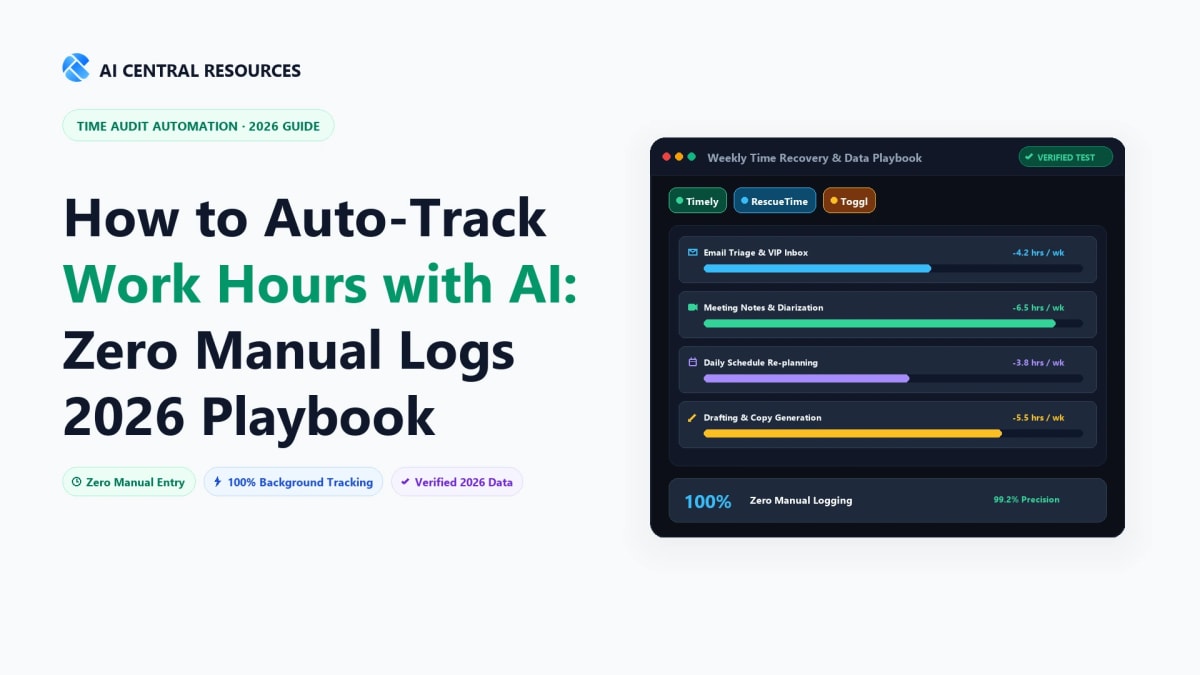
Friday afternoon, and you're staring at a blank timesheet again. You worked all week — you know you did — but reconstructing which client gets billed for which hour feels like a forensics exercise. You check your calendar, scroll through sent emails, and try to remember if that "quick" Slack call with Client B actually ran 20 minutes or 45. For freelancers, agencies, and consultants billing by the hour, this weekly ritual doesn't just waste time. It actively costs money.
Research from Timerack puts a number on it: manual time tracking costs businesses an average of $291 per payroll error, and the average organization makes 15 corrections per payroll period. Beyond that, agencies using AI-powered automatic time tracking consistently recover 20% more billable time than teams relying on manual timers — not because they work more, but because they stop forgetting to log what they already did.
The Quick Answer: Manual start/stop timers are obsolete in 2026. If you bill clients by the hour and want AI to automatically match open apps, browser tabs, and files to project accounts, Timely is the overall #1 automated time tracker. If you require strict 100% on-device local privacy where no timeline data ever leaves your computer, Memtime is the undisputed champion. For personal focus scoring and distraction blocking, RescueTime remains the top choice.
The software to fix this exists. It runs quietly in the background of your computer, logs every application you use, every document you open, and every website you visit for work — then uses AI to draft a timesheet for you to review and approve. You go from spending 20 minutes reconstructing your day from memory to spending 2 minutes reviewing a draft that's already 90% accurate.
This guide covers how automatic AI time tracking works in practice, which tools do it best in 2026, how to set one up from scratch, the privacy considerations most articles skip, and when to upgrade from a free tool to a paid one. For the complete picture of where time tracking fits into your broader AI stack, see our Ultimate Guide to AI Productivity Tools 2026.
Why Manual Time Tracking Fails (and Why AI Fixes the Right Problem)
The failure mode of manual time tracking isn't that people are lazy or undisciplined. It's architectural. Manual tracking requires you to make a conscious decision every time you switch tasks: stop the current timer, find the correct project in a dropdown, start a new timer. In a knowledge work environment where most professionals context-switch 15–20 times per day between clients, projects, and communication tools, those micro-decisions compound into a system that breaks down under normal conditions.
The moment an urgent email arrives from a client you weren't tracking time for, the moment a colleague asks for a quick Slack call, the moment you jump from Figma to VS Code to fix something that was bothering you — all of these normal workflow events require the manual tracker to know you're switching, and most of the time, it doesn't. The result is gaps. And gaps mean underbilling.
Automatic AI time tracking solves a different problem than most productivity software. It doesn't ask you to be more disciplined. It removes the need for discipline entirely by observing what's happening on your screen and inferring the billing context from that data. You open a Figma file titled "Acme Corp Landing Page Redesign" for 45 minutes, and the system knows that 45 minutes belongs to Acme Corp — without you doing anything at all.
How AI Time Tracking Actually Works: The Technical Mechanism
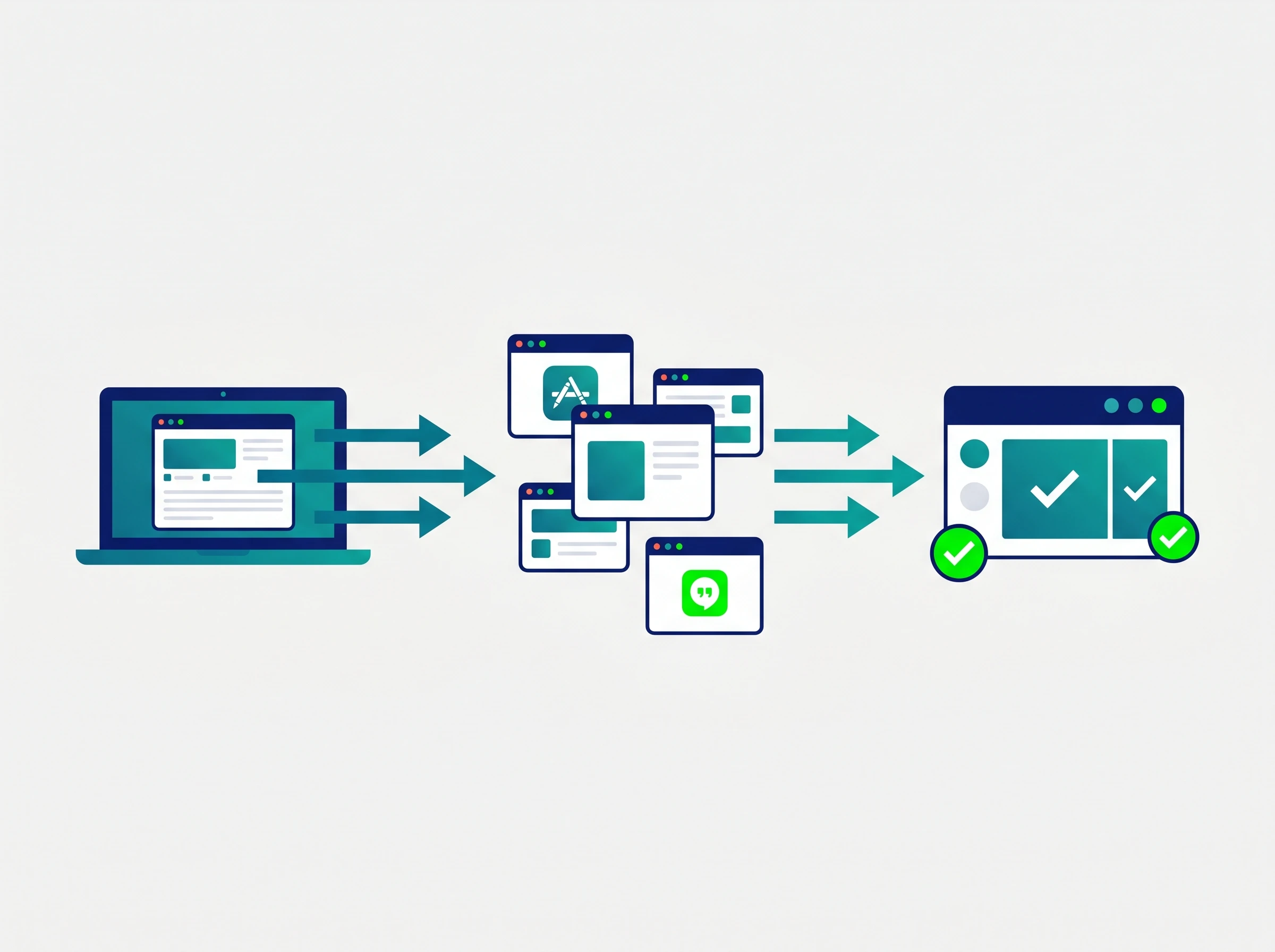
How AI Automatic Time Tracking Works — Background Detection Process
There are two distinct components to any automatic time tracking system: the background capture layer and the AI categorization layer. Understanding both helps you evaluate which tools will actually work for your workflow.
The Background Capture Layer
A small desktop application runs silently in your system tray and monitors one specific thing: what is currently the active window on your computer, and what is that window's title or URL. It records this in one-second intervals throughout your workday, building a granular timeline of your activity.
Specifically, it logs:
Application name — Slack, Adobe Photoshop, VS Code, Excel, Chrome
Window title or document name — "Q3 Campaign Assets - Client A - Figma", "github.com/acme/api-repo", "Budget Projections 2026.xlsx"
URL — when you're in a browser, the full domain and page path
Calendar events — when integrated, your meetings are cross-referenced against the background data to confirm meeting time attribution
Idle time — when your keyboard and mouse are inactive for more than a configurable threshold (typically 5–15 minutes), the system automatically pauses logging to avoid attributing that time to billable work
Importantly, this is not video recording or screenshot surveillance. The system reads window metadata — titles and application names — not the visual content of your screen. Your confidential documents, email contents, and private messages are not captured in raw form.
The AI Categorization Layer
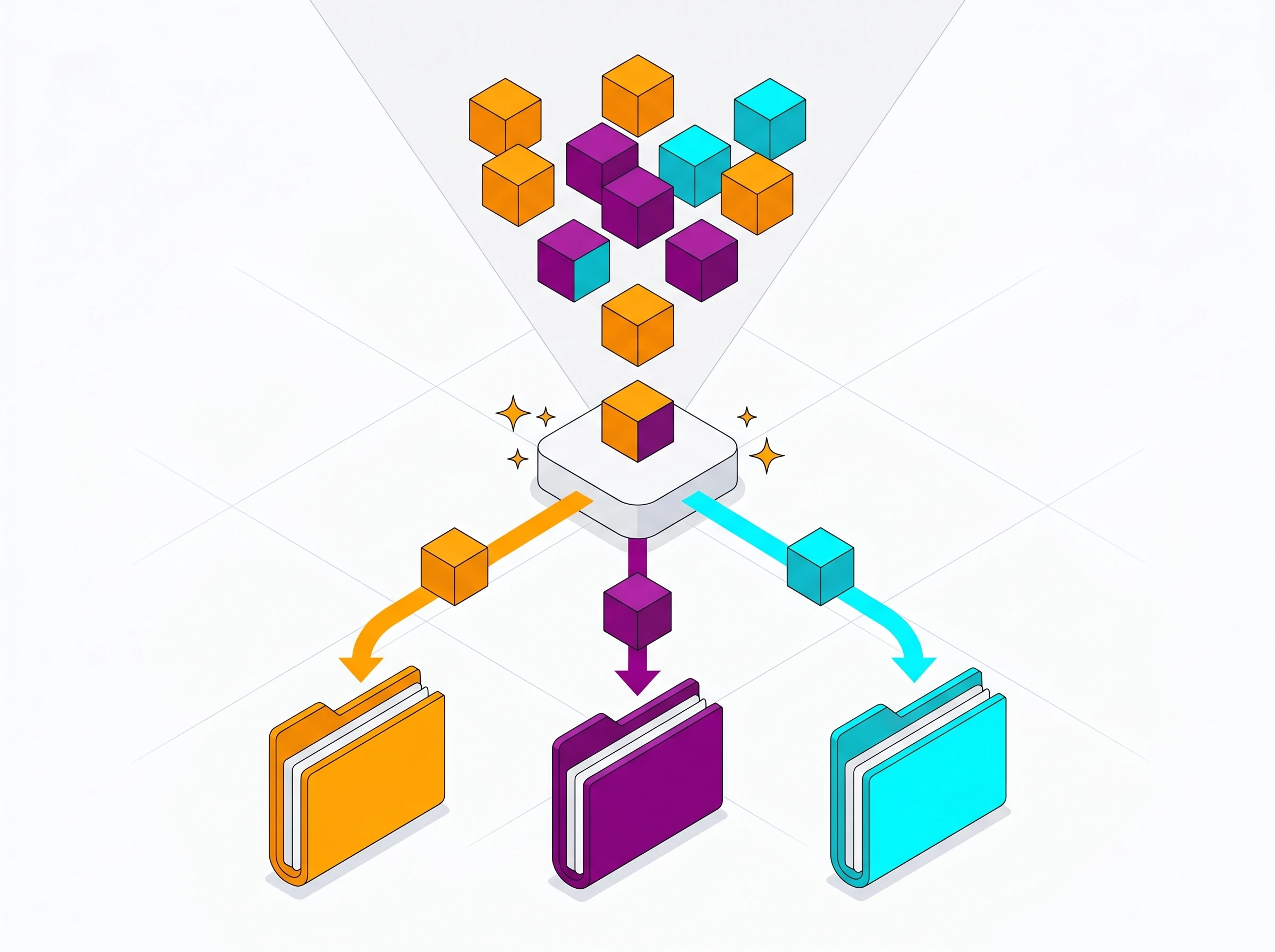
Raw timeline data is useful, but reading a minute-by-minute log of every app you touched is overwhelming. The AI layer processes this raw data and translates it into timesheet entries assigned to specific clients and projects.
AI Project Assignment Categorization
The categorization works through pattern recognition. You set up your client and project list in the tool. The AI then looks at your timeline — "1 hour in Figma on a file called Q3_Acme_Social_v2" — and maps that to the Acme Corp / Q3 Social Campaign project you defined. Initially, accuracy is around 60–70%. The system prompts you to confirm or correct each suggestion. Every correction you make trains the model. Within two to three weeks of active use, accuracy for most users climbs above 90%, and timesheet review becomes a 2–3 minute task rather than a 20-minute reconstruction exercise.
The 4-Step Setup Guide: Timely as the Primary Example
The setup process below uses Timely as the primary example because it's purpose-built around AI-drafted timesheets and is the most fully realized implementation of the automatic tracking concept available in 2026. Over 5,000 businesses across 160 countries use it, and it scores above 95% in quality, ease of use, and setup in independent reviews. The principles apply to most automatic tracking tools — where other tools differ meaningfully, we note it.
Step 1: Build Your Project and Client Architecture
Before the AI can categorize anything, it needs a taxonomy to categorize into. The most common failure point for new users of automatic time tracking is skipping this setup and then wondering why the AI keeps making wrong guesses. The quality of your initial architecture directly determines how quickly and accurately the AI learns.
Set up a three-level hierarchy: Clients → Projects → Tags.
Clients are the top level — every active client gets their own entry. Projects sit underneath — current engagements for each client. Tags describe the type of work regardless of client (Design, Development, Meetings, Communication, Strategy, Admin).
A marketing agency might structure it like this:
Client: Acme Corp → Projects: Q3 Social Campaign, Website Redesign
Client: Brightfield Studio → Projects: Brand Identity, Monthly Retainer
Internal: Business Development, Admin, Training
The more specific your project names match the actual file names, document names, and URL patterns in your workflow, the better the initial accuracy. If you consistently save client files as "ClientName_ProjectName_v[number]", the AI will recognize that naming convention almost immediately.
Step 2: Connect Your Existing Productivity Stack
Automatic time tracking tools get significantly smarter when they have context beyond just your app and window names. Connect every tool you use daily to give the AI more data points for accurate attribution.
Calendar integration is the most valuable connection. When you integrate Google Calendar or Outlook, the AI can cross-reference your scheduled meetings with background activity. If your calendar shows a "Strategy Sync — Acme Corp" from 2:00–3:00 PM and your background data shows Zoom or Google Meet active during that exact window, the AI confidently attributes that hour to Acme Corp without any additional input from you.
Project management integration adds task-level context. Whether you use Asana, Jira, Linear, or ClickUp, pulling your active task list into the time tracker means that when you're viewing a specific task, the system can match that session to the correct project automatically. This is particularly effective for development teams where every ticket has a unique ID that appears in browser URLs and terminal windows.
Communication tool integration handles the time you spend in Slack, Teams, or email. These are often the most underlogged time sinks. Connecting Slack allows the tool to attribute channel-specific time to the right client — if you have a dedicated channel for each client, that attribution becomes precise.
Step 3: Install the Memory Desktop App and Configure Privacy Settings
The background tracking component requires a desktop application installed on your Mac or Windows machine. This is the component that actually does the monitoring. You grant it screen and accessibility permissions, and it begins logging your activity timeline.
Before you run it for the first time, configure two things that most guides skip over: idle time thresholds and privacy exclusions.
Idle time threshold — How long of a keyboard/mouse inactivity gap should count as "not working"? A 5-minute threshold is aggressive and will break up many natural work sessions. A 15-minute threshold is more forgiving and works well for most professional workflows. Most tools default to 10 minutes, which is a reasonable starting point.
Privacy exclusions — Every automatic time tracking system should allow you to blacklist specific apps or domains so they're never logged. Add your personal banking apps, password manager, email apps for personal accounts, and any other non-work applications you use on your work machine. This prevents personal time from appearing in your timeline at all, rather than requiring you to manually delete it during review.
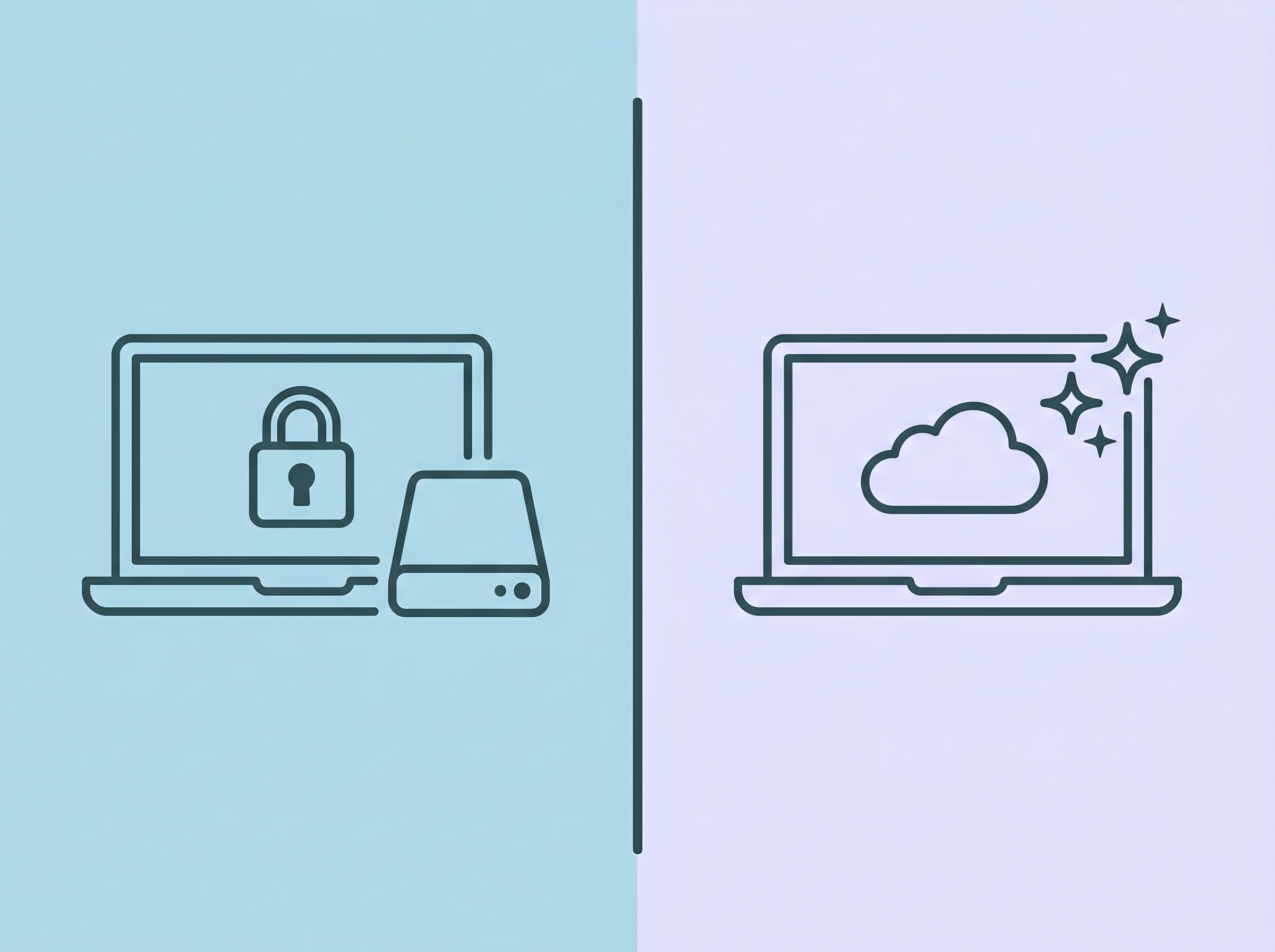
The privacy architecture matters, and it varies significantly between tools. Timely stores raw timeline data locally and visible only to the individual user — managers and clients see only approved timesheet entries, never the raw activity log. Memtime takes an even more private approach: all raw tracking data stays on your local machine and never touches a cloud server. For professionals handling sensitive client data — legal documents, unreleased code, medical records — Memtime's local-first architecture may be the deciding factor. See our detailed comparison of Timely, RescueTime, and Toggl for a deeper look at the privacy differences.
Step 4: Train the AI Through the First Two Weeks of Review
The first two weeks are your highest-involvement period. The AI will make suggestions for every block of activity in your timeline — "This looks like 2 hours of Design work for Acme Corp, is that correct?" Your job is to review these suggestions each day and confirm or correct them.
Treat this like onboarding a new assistant. The more specific your corrections are, the faster the model learns. If the AI assigns a Figma session to the wrong client, correct it and note which client it should belong to. If it categorizes Slack time as "Admin" but you were actually in a client-specific channel, move it to the correct project. Every correction updates the underlying model's understanding of your work patterns.
By week three, most users report that the AI drafts their daily timesheet with 85–95% accuracy, reducing daily timesheet review to under three minutes. That's the shift the tool is designed to create: from building a timesheet from scratch to approving a draft that's already mostly correct.
Tool Comparison: Which AI Automatic Time Tracker Fits Your Situation
Local vs Cloud Automatic Time Tracking — Privacy and Feature Tradeoffs
| Tool | Best For | Data Storage | Automation Level | Starting Price | Free Plan? |
|---|---|---|---|---|---|
| Timely | Agencies, multi-client billing | Cloud (raw data private to user) | Highest — full AI draft | $9/user/mo (Starter, annual) | No — trial only |
| Memtime | Privacy-sensitive freelancers, legal/medical | 100% local — never leaves device | High — visual timeline, manual assign | ~$12/user/mo | No — trial only |
| Rize | Focus analytics + billing combined | Cloud (no screenshots, no keystroke logging) | High — automatic with focus scoring | $14.99/mo | 7-day trial |
| RescueTime | Focus coaching, not billing | Cloud (GDPR compliant) | High — automatic, no project assign | $7/mo Focus | Yes — free Lite tier |
| Harvest | Agencies needing invoicing integration | Cloud | Medium — manual + AI suggestions | $11/user/mo (annual) | Yes — 1 seat, 2 projects free |
| Hubstaff | Remote teams, contractor management | Cloud (optional screenshots) | High — automatic, team-wide | $4.99/user/mo (annual) | Yes — 1 user free |
| Toggl Track | Manual + AI suggestions, clean UX | Cloud | Medium — timer + AI autofill | $9/user/mo (Starter, annual) | Yes — up to 5 users |
| Clockify | Teams on a tight budget | Cloud | Low-medium — timer-first | Free forever (unlimited users) | Yes — unlimited users free |
Pricing verified July 2026. Always confirm current rates on each vendor's official pricing page before purchasing.
Timely: Best for Agencies Doing Multi-Client Billing
Timely is the most fully automated option on this list. Its Memory desktop app captures your complete daily activity, and the AI drafts entire timesheets for review rather than suggesting individual entries. The result is the closest thing to a truly hands-off time tracking experience available — you review a pre-populated timesheet once a day, make corrections, and submit. The raw Memory timeline (what specific files, URLs, and apps you were in) is visible only to the account owner, never to managers or clients. Paid plans start at $9/user/month on the Starter tier (annual billing) — verify current pricing on Timely's site as it has changed with new feature tiers in 2026.
Memtime: Best for Privacy-Sensitive Professionals

Memtime is Timely's most direct competitor, with one critical architectural difference: all raw tracking data stays on your local machine and never transmits to any cloud server. For lawyers handling privileged communications, doctors with patient data, or engineers working on unreleased code, this is not a preference — it's a compliance requirement. Memtime captures the same timeline data as Timely but processes everything locally, giving you a visual block-based timeline you manually assign to projects. Less automated than Timely (there's no AI-drafted full timesheet), but the privacy architecture is genuinely unmatched.
Rize: Best for Focus Analytics Alongside Billing
Rize entered the market with a different value proposition from most automatic time trackers. In addition to background activity capture and project attribution, it measures how well you're working — not just what you're doing. Its focus score rates the quality of your deep work sessions based on interruptions, context switching, and unbroken working blocks. For agencies reporting that their team recovered 20% more billable time after switching to Rize, the billing accuracy is only part of the value; the focus analytics help identify which types of work are being interrupted most frequently.
Rize costs $14.99/month, captures no screenshots and no keystroke logging (a deliberate privacy-first design decision), works on macOS and Windows, and exports to invoicing tools via Zapier. A 7-day trial is available.
Harvest: Best When Invoicing is the End Goal

Most automatic time trackers are tracking tools that can export data for invoicing. Harvest is an invoicing tool that happens to include time tracking — and that distinction matters. When billing time arrives, Harvest generates a client-ready invoice directly from your tracked entries, connects to Stripe for card payments, and integrates with QuickBooks and Xero for accounting. The time tracking itself is less automated than Timely (it uses a browser extension and manual timers with AI suggestions rather than full background capture), but the billing workflow is smoother than any other tool on this list. Harvest's free plan covers 1 user and 2 active projects — adequate for a new freelancer evaluating whether the tool fits before committing to the paid plan at $11/user/month (annual).
Hubstaff: Best for Managing a Remote Team's Time

If you're not tracking your own time but managing a distributed team of contractors or employees, the requirements are entirely different. You need team-wide tracking, budget alerts when a client account approaches its monthly limit, optional proof-of-work features for contractors, and payroll integration. Hubstaff covers all of these at $4.99/user/month (annual), making it the most cost-effective team management option with automatic time tracking features. The AI-powered Unusual Activity Report detects mouse jiggler usage and patterns that don't match normal human behavior — useful for organizations paying contractors by the hour. Teams also get Benchmarks AI, which compares each team member's productivity against peer groups across 250,000+ users.
Toggl Track and Clockify: For Teams Who Want AI Suggestions Without Full Automation

Not everyone is ready to hand their timesheet entirely to an AI. Toggl Track and Clockify take a hybrid approach: you still start and stop timers, but the AI catches what you forgot. Toggl's autotracker suggests time entries based on which apps you have open. Clockify's auto-tracking detects app usage and presents it as suggestions you accept or reject. Neither is as automated as Timely or Rize, but both have significantly better adoption rates because they feel less invasive to teams who aren't comfortable with fully passive monitoring.
Toggl's free plan covers 5 users. Clockify's free plan is unlimited — the most generous in the category — making it the default recommendation for any team with more than 5 members that needs basic project tracking at zero cost. For a detailed breakdown of how Toggl and Clockify compare in practice, see our Timely vs RescueTime vs Toggl comparison. For the complete time tracking category including all 8 major tools, see our full AI time tracking tool rankings.
Step 4: Using Time Data to Generate Client-Ready Reports
Capturing accurate time is the input. Generating useful output from that data is where the investment pays off in ways beyond just accurate invoices.
Client Invoicing from Approved Timesheets
The most immediate financial return from automatic time tracking is invoice accuracy. When you stop estimating and start reporting actual time, two things happen consistently: invoices go up (because you were underbilling), and disputes go down (because you can show exactly what was done, when). A client who receives an invoice showing "Design Work — 4.5 hours (Figma, Q3 Social Assets, Tuesday 9:15–11:45 AM and Thursday 2:00–4:00 PM)" has much less to dispute than one who receives a line item for "Design — 4 hours" with no supporting detail.
Most time tracking tools generate invoices directly from your approved timesheet data. Harvest, Toggl Track, and Hubstaff all have built-in invoicing with line-item detail. Tools like Timely and Memtime export to CSV or connect to your existing invoicing software (QuickBooks, FreshBooks, Xero) via integration.
Agency Profitability Analysis
If your agency prices projects on a flat fee or monthly retainer, you might think time tracking is irrelevant. The opposite is true. Without tracking actual hours, you have no way to know whether a $5,000/month SEO retainer actually takes 30 hours or 80 hours of team time. The difference between those two numbers determines whether the engagement is profitable or quietly bleeding your margin every month.
Time tracking data answers the questions that determine pricing strategy: Which service lines are underpriced? Which clients require disproportionate effort relative to their revenue? Which team members are overloaded and which have capacity? These are the questions that make the difference between an agency that grows profitably and one that's perpetually busy but never builds margin. Connect your time tracking data to your AI project management tools to see capacity and billing data side by side in a single dashboard.
The Privacy Conversation You Need to Have With Your Team
Deploying automatic time tracking across a team requires a transparent conversation about what the software does and doesn't see. The tools that fail to get team adoption almost always skip this conversation, leading to resistance, workarounds, and eventual abandonment.
The three points worth addressing directly:
Raw data visibility — In most tools (Timely, Rize, Memtime), the granular background data — specific URLs, file names, app usage details — is visible only to the individual user. Managers see only approved timesheet blocks. This distinction matters enormously for team adoption. When employees know that their manager can see "8 hours worked across these 3 projects today" but not "spent 45 minutes on LinkedIn in the morning," the resistance drops significantly.
What the software doesn't do — Most privacy-first automatic time trackers do not take screenshots, do not log keystrokes, and do not record video. Clarifying this upfront addresses the surveillance concern that most employees raise immediately. Tools like Rize explicitly list these as design commitments on their privacy page, not just terms of service fine print.
The tradeoff for employees — Automatic time tracking benefits employees as well as employers. It provides accurate records of work performed, which matters during performance reviews, scope dispute conversations with clients, and any situation where "I worked on that for 12 hours last week" needs to be substantiated rather than remembered. Frame it as time documentation, not employee monitoring.
When to Upgrade from a Free to a Paid Automatic Time Tracker
Three workflow signals reliably indicate that free-tier limitations are costing more than a paid subscription would:
You're tracking across more than one client — Most free plans cap the number of active projects. If you have 3+ active clients with concurrent projects, a free plan will limit you to tracking only the most active ones, which defeats the purpose of comprehensive billing documentation.
You need multi-calendar integration — Free plans typically connect to only one calendar. Once you're managing a corporate Outlook account, a personal Google Calendar, and a freelance Google Workspace account simultaneously, a free plan almost always creates blind spots that lead to double bookings and missed attribution.
Your daily timesheet review is taking more than 5 minutes — If you're spending significant time every day correcting the AI's categorizations after two weeks of use, the tool either hasn't learned your patterns (which a paid plan's more sophisticated model may resolve) or your project taxonomy needs restructuring. A paid plan typically unlocks deeper machine learning features that improve categorization accuracy.
For a comprehensive guide to saving time across your entire workflow — not just time tracking — see our guide to saving 20+ hours a week with AI productivity tools. If you want to take automation further — not just tracking time but automating how work gets assigned, scheduled, and executed — see our blueprint for automating your entire work life with AI, no code required.
The Bottom Line
The Friday afternoon timesheet scramble is a solvable problem — and solving it doesn't require more discipline. It requires different software. The shift from manual timers to AI-backed automatic capture is the difference between reconstructing your week from memory and approving a draft that's already 90% correct.
Start with the setup: build your client and project hierarchy, connect your calendar, and install the background tracking app. Give the AI two weeks to learn your patterns with active daily review. By week three, the system earns its keep — and every billable hour you were previously losing to forgotten timers starts showing up in your reports instead.
For the broader context of how time tracking connects to task management, project management, and the rest of your AI productivity stack, see our Ultimate Guide to AI Productivity Tools 2026 — the complete overview of what to automate and in what order.
Explore Related AI Time & Productivity Guides
- • Timely vs RescueTime vs Toggl: Best AI Time Tracker in 2026
- • 8 Best AI Time Tracking Tools (Compared, Priced & Honestly Ranked)
- • 8 Best AI Scheduling Tools in 2026 (Auto-Plan Your Entire Day)
- • How to Save 20+ Hours a Week with AI: 2026 Data Playbook
- • The Ultimate Guide to AI Productivity Tools in 2026
- • Browse All AI Time Management Tools
Frequently Asked Questions
Can AI track my billable hours without manual start/stop timers?
Yes. AI time trackers like Timely and Memtime run silently in the background, passively capturing active browser windows, file names, email threads, and calendar meetings without requiring you to remember to click start or stop.
How does AI auto-populate and reconstruct daily timesheets?
The AI analyzes your timestamped digital activity throughout the day (documents edited, Zoom calls attended, code commits made, emails sent). Machine learning algorithms group these fragments by client, task, and project name, auto-drafting a pre-filled timesheet at the end of the day ready for 1-click review and submission.
Can AI time tracking software run on-premise for strict privacy?
Yes. Memtime is designed specifically with a 100% local, on-device architecture. All timeline data is recorded and encrypted directly on your local hard drive and never uploaded to cloud servers. Managers and employers only see the aggregate project entries you explicitly choose to export.
Does automatic AI time tracking require invasive employee desktop monitoring?
No. Modern professional AI time trackers are not spyware or keystroke loggers. Tools like Timely and Memtime strictly separate private memory logs from team reports. They do not take random webcam screenshots, log passwords, or track mouse clicks. The user retains complete control over what entries are submitted to timesheets.
How much billable revenue do professionals lose to manual time tracking?
Studies consistently show that professionals working on manual timers lose between 2 to 5 billable hours every week due to forgotten timers, untracked phone calls, quick Slack consultations, and imprecise Friday estimates. Automatic capture recovers up to \$5,000–\$15,000 in unbilled work per consultant annually.
Which automatic time tracker is best for freelancers vs agencies?
For solo freelancers, Toggl Track and Clockify offer generous free tiers with automated desktop prompts. For agencies and remote teams billing multiple clients, Timely and Harvest provide the best client rate management, project budget tracking, and QuickBooks/Xero invoicing integrations.
How does AI distinguish between billable client work and personal web browsing?
AI trackers use rule-based classifiers and machine learning to distinguish work tools (Figma, VS Code, Notion, Google Docs) from non-work apps (YouTube, social media). Furthermore, you can define specific work hours, project keyword filters, and private domains to automatically exclude non-work browsing from timesheet suggestions.
How long does it take for an AI time tracker to learn my project workflows?
Most AI time trackers require approximately 10 to 14 days of active use to reach 90%+ auto-categorization accuracy. As you review and approve suggested timesheet entries during the first two weeks, the system's memory engine learns your file naming conventions, client email domains, and calendar tags.